I remember sitting in a cramped logistics office a decade ago, staring at a single, flickering laptop screen while trying to cross-reference three different spreadsheets and a shipping manifest. I was constantly Alt-Tabbing, losing my place, and feeling that familiar, stabbing headache of digital fragmentation. People told me I just needed better time management, but that was nonsense. The truth is, my brain was working fine; my hardware was just failing me. Most people treat dual monitor setups like a luxury upgrade or a way to look “techy,” but in reality, it’s about reclaiming the cognitive bandwidth you lose every time you switch windows.
I’m not here to sell you on a $3,000 ultra-wide curved display or a desk that looks like a spaceship. I’ve spent years architecting workflows for people who actually need to get things done, and I know that less is often more when it comes to hardware. In this guide, I’m going to show you how to build a functional, clutter-free workspace that prioritizes your focus over aesthetics. We’re going to talk about the practicalities of alignment, screen real estate, and how to configure your gear so it serves your work, rather than becoming another distraction to manage.
Table of Contents
- Ultrawide vs Dual Monitor Choosing the System That Serves You
- Mastering Vesa Mount Compatibility for a Purposeful Workspace
- Five Ways to Stop Fighting Your Hardware and Start Working
- Cutting Through the Setup Noise
- The Philosophy of Digital Real Estate
- The Setup is Only the Beginning
- Frequently Asked Questions
Ultrawide vs Dual Monitor Choosing the System That Serves You
When you’re deciding between an ultrawide or a traditional two-screen layout, you aren’t just picking hardware; you’re deciding how you want to interact with your digital workspace. An ultrawide is elegant and minimizes the physical bezel in your field of vision, which is great for deep, immersive tasks like video editing or massive spreadsheets. However, it can sometimes feel like staring into a vast, empty sea if you aren’t careful with your window management.
On the other hand, a classic split setup offers a more rigid, compartmentalized structure. I personally find that having one screen dedicated to “active work” and the other to “reference material” provides a psychological boundary that helps with productivity workflow optimization. If you go this route, don’t let the clutter win. Invest in decent monitor mounting solutions to lift those screens off your desk; clearing that physical footprint is essential for keeping your mental load low. Whether you choose the seamless sweep of an ultrawide or the structured utility of two screens, make sure the choice serves your specific rhythm, not just the latest tech trend.
Mastering Vesa Mount Compatibility for a Purposeful Workspace
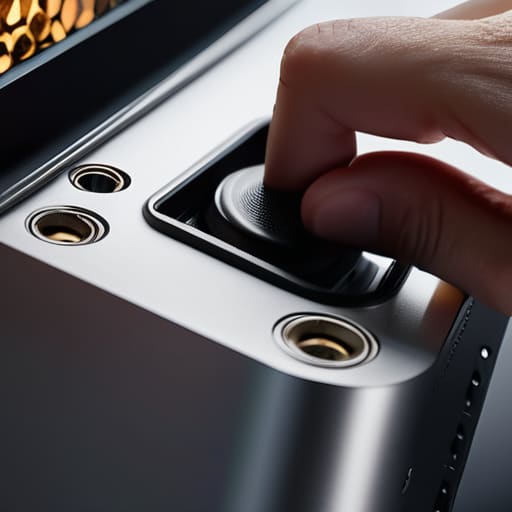
Once you’ve decided on your hardware, don’t let a technical oversight ruin your momentum. I’ve seen too many professionals buy an expensive dual monitor setup only to realize their screens aren’t actually compatible with the arms they ordered. Before you click “buy,” check the back of your monitors for those four standardized screw holes. This is your VESA mount compatibility check, and it is non-negotiable. If your monitor lacks these holes or uses a proprietary pattern, you’re going to hit a wall of frustration that halts your workflow before you even start.
Investing in a quality mounting solution isn’t just about saving desk real estate; it’s a fundamental part of productivity workflow optimization. When you lift your screens off the desk, you reclaim your physical and mental space. It also allows you to adjust the height and angle precisely to your eye level, which is the simplest form of eye strain prevention available. Don’t just settle for whatever stands on its own feet; build a setup that allows you to control your environment.
Five Ways to Stop Fighting Your Hardware and Start Working
- Prioritize ergonomics over aesthetics. I’ve seen too many beautiful, minimalist desks ruined by monitors that sit too low, forcing people into a permanent slouch. Align the top third of your screens with your eye level so you aren’t fighting your own neck by 3:00 PM.
- Manage your digital real estate with intention. Don’t just spread windows randomly across both screens; assign specific roles to each. I use my primary monitor for deep work and my secondary strictly for reference materials or communication tools. If everything is a priority, nothing is.
- Invest in quality cables, not just fancy stands. There is nothing that breaks my focus faster than a flickering screen or a sudden disconnect because of a cheap, fraying HDMI cord. Get reliable, high-bandwidth cables that you can set and forget.
- Control your lighting to reduce cognitive load. If you have a dual setup, the glare from a window or a harsh overhead light hitting one screen differently than the other is a massive distraction. Use bias lighting or adjustable desk lamps to create a consistent, soft environment.
- Use your mouse and keyboard to bridge the gap. A single, high-quality peripheral setup that moves seamlessly between screens prevents that awkward “searching” feeling. If your mouse feels like it’s struggling to transition from one monitor to the next, your hardware is working against your workflow.
Cutting Through the Setup Noise
Don’t buy hardware just because it’s trending; choose between an ultrawide or dual monitors based on whether your specific workflow requires distinct task separation or one continuous canvas.
Prioritize your physical ergonomics by using VESA mounts to lift your screens to eye level, preventing the neck strain that kills long-term focus.
Treat your desk setup as a functional system rather than a collection of gadgets—if a piece of tech doesn’t actively reduce your mental load, it’s just more digital clutter.
The Philosophy of Digital Real Estate
A second monitor isn’t just extra screen space; it’s a way to stop the constant, exhausting cycle of tab-switching that fractures your focus. Build a setup that supports your flow, not one that just adds more clutter to your desk.
Emmett Kowalski
The Setup is Only the Beginning
At the end of the day, building a dual monitor setup isn’t about collecting more hardware or achieving some arbitrary standard of “techiness.” It’s about the technical decisions we discussed: deciding between the seamless expanse of an ultrawide or the modular flexibility of two distinct screens, and ensuring your mounting solution is robust enough to actually hold the weight of your daily grind. If you ignore the compatibility of your VESA mounts or pick a configuration that forces you to constantly neck-strain, you haven’t built a productivity tool—you’ve just built a new way to get a headache. Focus on the logistics of your physical space and let the hardware disappear into the background of your workflow.
Once the cables are tucked away and the monitors are leveled, remember that the gear is secondary to the intention behind it. A high-end setup won’t magically fix a chaotic schedule or a lack of focus; it simply provides a cleaner stage for you to perform your best work. Don’t let the pursuit of the “perfect” desk setup become another form of procrastination. Build your system, clear the digital clutter, and then get back to the work that actually matters. Your tools are finally ready to serve you; now it’s time to show up.
Frequently Asked Questions
How do I figure out if my current laptop or docking station can actually handle driving two screens without lagging?
Don’t guess and end up with a stuttering screen mid-meeting. First, check your laptop’s specs for Thunderbolt or USB-C with DisplayPort Alt Mode—that’s your lifeline. If you’re using a dock, verify its bandwidth; a cheap hub often chokes when pushing two high-res signals. My rule of thumb: if your laptop struggles with a single 4K monitor, adding a second will be a nightmare. Test the connection with one screen first, then scale up.
Is it worth investing in high-end monitors, or should I just prioritize matching the resolution and size for a seamless workflow?
Don’t fall into the trap of thinking a high price tag equals better workflow. I’ve seen people drop thousands on “pro” displays only to struggle because their second screen is a different size or resolution. That mismatch creates constant eye strain and mental friction every time you move your cursor. Prioritize consistency. Match your resolution and physical dimensions first; a seamless, predictable visual field is far more valuable than a few extra nit levels you won’t even notice.
How do I manage the cable clutter so my desk doesn't end up looking like a tech graveyard?
If your desk looks like a tech graveyard, you’ve already lost the battle for focus. Stop trying to hide the mess and start routing it. Invest in a solid cable management tray that bolts under your desk—get those power strips off the floor immediately. Use Velcro ties, not plastic zip ties; they’re more forgiving when you actually need to move things. Treat your cables like plumbing: if they aren’t organized, the whole system leaks mental energy.
